
TL;DR
Install WordPress on localhost when you need a safe place to build, test plugins, edit themes, or debug errors without touching production. LocalWP is the easiest route for most users, while XAMPP gives more manual control.
- Create the local site, database, admin user, and permalink settings before importing real content.
- Match PHP and database versions as closely as possible to the live host when debugging.
- Move from localhost to staging before production so URLs, mail, cache, and SSL behavior can be tested.
Quick Answer
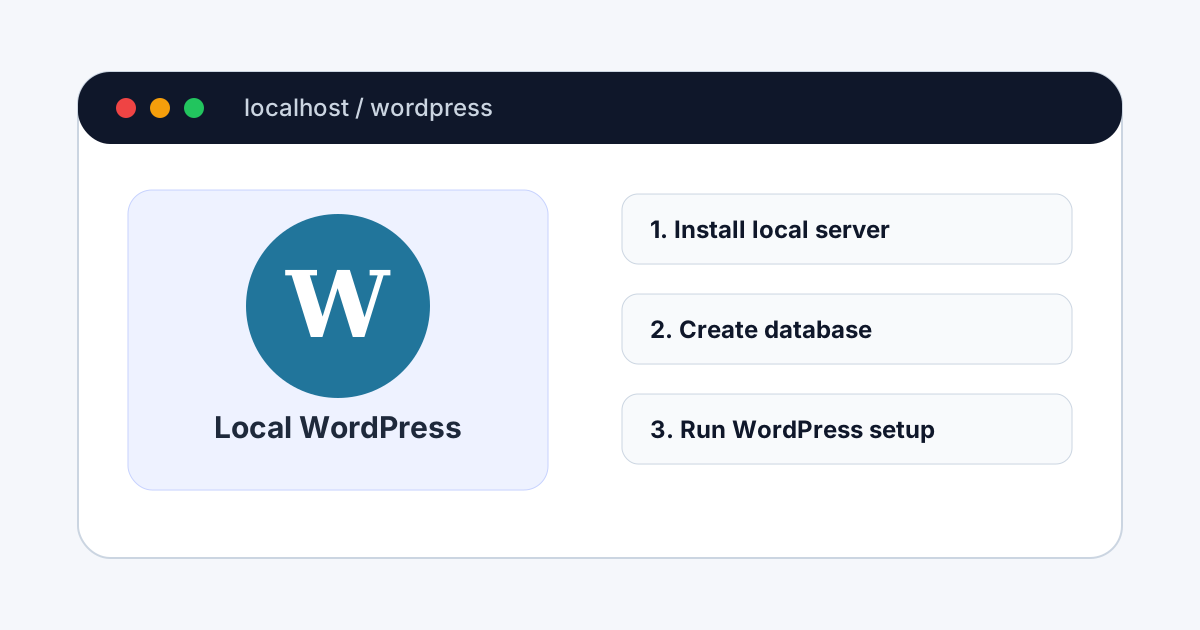
To install WordPress on localhost, install a local development environment, create a WordPress site, set up a database, run the WordPress installer, then log in at your local admin URL. The easiest method is LocalWP. The manual method is XAMPP plus a fresh WordPress download from WordPress.org.
For most beginners, use LocalWP. It creates the local domain, database, PHP environment, and WordPress files automatically. Use XAMPP if you want to understand how Apache, PHP, MariaDB, phpMyAdmin, and the WordPress installer work together.
What Does Localhost Mean for WordPress?
Localhost means your website runs on your own computer instead of a public hosting server. When you open a URL such as http://localhost/wordpress or https://my-site.local, the browser is loading files from your machine and querying a local database.
This is useful because WordPress needs PHP and a database. A normal static HTML file can open directly in a browser, but WordPress cannot run correctly without a server layer. A localhost stack gives WordPress the same basic ingredients it expects on hosting: web server, PHP runtime, database server, and file storage.
Before You Start: Choose Your Local Stack
| Option | Best For | What You Manage |
|---|---|---|
| LocalWP | Beginners, freelancers, fast prototyping | Site name, environment choice, admin login |
| XAMPP | Manual learning, Windows localhost tutorials | Apache, MySQL/MariaDB, phpMyAdmin, files |
| Docker | Teams and repeatable dev environments | Containers, volumes, compose files, ports |
This guide focuses on LocalWP and XAMPP because they cover the two most common search intents: simple local WordPress installation and manual localhost installation. If you are already comfortable with containers, WordPress also maintains official Docker images, but that workflow is a separate developer setup.
Method 1: Install WordPress on Localhost with LocalWP
LocalWP is the simplest path because it hides the low-level server setup. You still get a real local WordPress site, but you do not need to create the database manually.
- Download Local from the official LocalWP website and install it for Windows, macOS, or Linux.
- Open Local and choose Create a new site.
- Enter a site name, such as
fyrepress-test. Local will create a local domain likefyrepress-test.local. - Choose the preferred environment unless you need a specific PHP or database version for an existing production site.
- Create your WordPress admin username, password, and email.
- Wait for Local to install WordPress, then click WP Admin to log in.
After setup, visit the local site URL and admin URL. Install your theme, add plugins, test settings, and keep notes about anything that must match production, such as PHP version, permalink structure, and plugin versions.
Method 2: Install WordPress on Localhost with XAMPP
XAMPP gives you a more traditional localhost setup. You install Apache and MariaDB, place WordPress files inside the local web root, create a database, and run the WordPress installer in your browser.
Step 1: Install and Start XAMPP
Download XAMPP from Apache Friends, install it, then open the XAMPP Control Panel. Start Apache and MySQL. If both services are green/running, open http://localhost to confirm the local server works.
Step 2: Add WordPress Files
Download WordPress from WordPress.org, unzip the package, and copy the WordPress folder into XAMPP's web root. On Windows, that is usually C:\xampp\htdocs\wordpress. Your local site URL becomes http://localhost/wordpress.
Step 3: Create a Database
Open http://localhost/phpmyadmin, choose Databases, and create a new database such as wordpress_local. Use a clean lowercase name without spaces.
Step 4: Run the WordPress Installer
Visit http://localhost/wordpress. When WordPress asks for database details, use:
- Database name: the name you created, for example
wordpress_local - Username:
root - Password: leave blank on a default local XAMPP install
- Database host:
localhost - Table prefix: keep
wp_locally unless you have a reason to change it
Finish the site title and admin user screen, then log in at http://localhost/wordpress/wp-admin.
What to Do After WordPress Is Installed Locally
A fresh local install is only the starting point. Before building pages or testing plugins, make the local site behave like a real project.
- Set permalinks under Settings > Permalinks. If you will use pretty URLs on production, test them locally too.
- Install only the plugins you actually need. A clean local site is easier to debug than a plugin-heavy sandbox.
- Use a strong admin password even locally, especially if you use sharing links or tunnels.
- Match the PHP version to your host when possible. This catches compatibility issues before upload.
- Keep debug display off for normal browsing, but use logs when troubleshooting. Our Server Log Analyzer can help review common error patterns.
Recommended Local WordPress Settings
A localhost website should be convenient, but it should not be careless. The goal is to make local development close enough to production that bugs show up early, while still keeping the environment flexible for experiments.
| Setting | Recommended Local Value | Why It Matters |
|---|---|---|
| PHP version | Match your live host | Prevents plugin and theme surprises after upload. |
| Permalinks | Use the same structure planned for production | Catches rewrite and internal link issues early. |
| Debug logging | Log errors, do not display them during normal review | Keeps testing readable while preserving error details. |
| Search visibility | Discourage indexing on staging, irrelevant on private localhost | Prevents duplicate staging pages from entering search. |
If you are using LocalWP, check the site overview panel for PHP, web server, database, SSL, and domain settings. If you are using XAMPP, document your Apache port, database name, folder path, and local URL. These notes save time when you return to the project months later.
Where WordPress Files Live on Localhost
Understanding the file structure helps when you install themes manually, debug plugin files, or move the site later. In a typical XAMPP setup, the WordPress folder sits inside htdocs. In LocalWP, each site has its own app folder with WordPress files under an app/public directory.
wordpress/
  wp-admin/
  wp-content/
    plugins/
    themes/
    uploads/
  wp-includes/
  wp-config.php
Most daily work happens in wp-content. Themes go in wp-content/themes, plugins go in wp-content/plugins, and media uploads go in wp-content/uploads. Avoid editing WordPress core files in wp-admin or wp-includes; those changes will be overwritten during updates.
Common Localhost WordPress Errors and Fixes
Error establishing a database connection
Check the database name, username, password, and host. In default XAMPP, the username is usually root and the password is blank. Also confirm MySQL/MariaDB is running.
Apache will not start
Port 80 or 443 may already be used by another app. Stop the conflicting app or change Apache ports in XAMPP. After changing ports, your URL may become http://localhost:8080/wordpress.
Pretty permalinks return 404
Save permalinks again in WordPress. For Apache setups, confirm rewrite support is enabled and that WordPress can write or read the correct .htaccess rules. You can compare rules with our .htaccess Generator.
Plugins fail because memory is too low
Local imports, backups, and page builders can hit PHP memory limits. Review our guide on fixing WordPress allowed memory size exhausted errors before raising values blindly.
How to Prepare a Local Site for Live Hosting
Do not treat localhost as production. A local site is private, forgiving, and often configured differently from hosting. Before launch, move to staging or a temporary domain and test like a visitor, editor, and administrator.
- Back up the local files and database.
- Move to staging with a migration plugin, host migration tool, or manual files plus database export.
- Replace local URLs with the staging or production domain. Avoid raw search-and-replace on serialized data unless your tool handles it safely.
- Check menus, forms, media files, permalinks, redirects, robots.txt, and sitemap output.
- Review security basics before launch with our WordPress security hardening guide.
SEO Notes for Local WordPress Sites
Google cannot index a normal localhost site because it is not public. That is good while you are building. When you move to staging, keep indexing disabled if the staging URL is public. When you move to production, confirm the final site is indexable, has a clean canonical URL, and has correct robots.txt rules.
If you are preparing content before launch, generate page metadata with our Meta Tag Generator, check social previews with the Open Graph Meta Builder, and create structured data with the Schema Markup Builder.
FAQs
Can I install WordPress on localhost without internet?
Yes, after the local server app and WordPress package are already downloaded. You will still need internet for plugin/theme downloads, updates, external APIs, fonts, license checks, and some demo imports.
Should I use localhost for a client project?
Yes for early development and testing. Use a private staging site for client review because localhost is only available on your computer unless you expose it with a sharing link or tunnel.
Is localhost the same as staging?
No. Localhost runs on your own computer. Staging runs on a server, usually with a real domain or subdomain, and is better for final testing before production.